Posted on Leave a comment

How to Choose a microSD Card for DJI Osmo Pocket 3 and Pocket 4

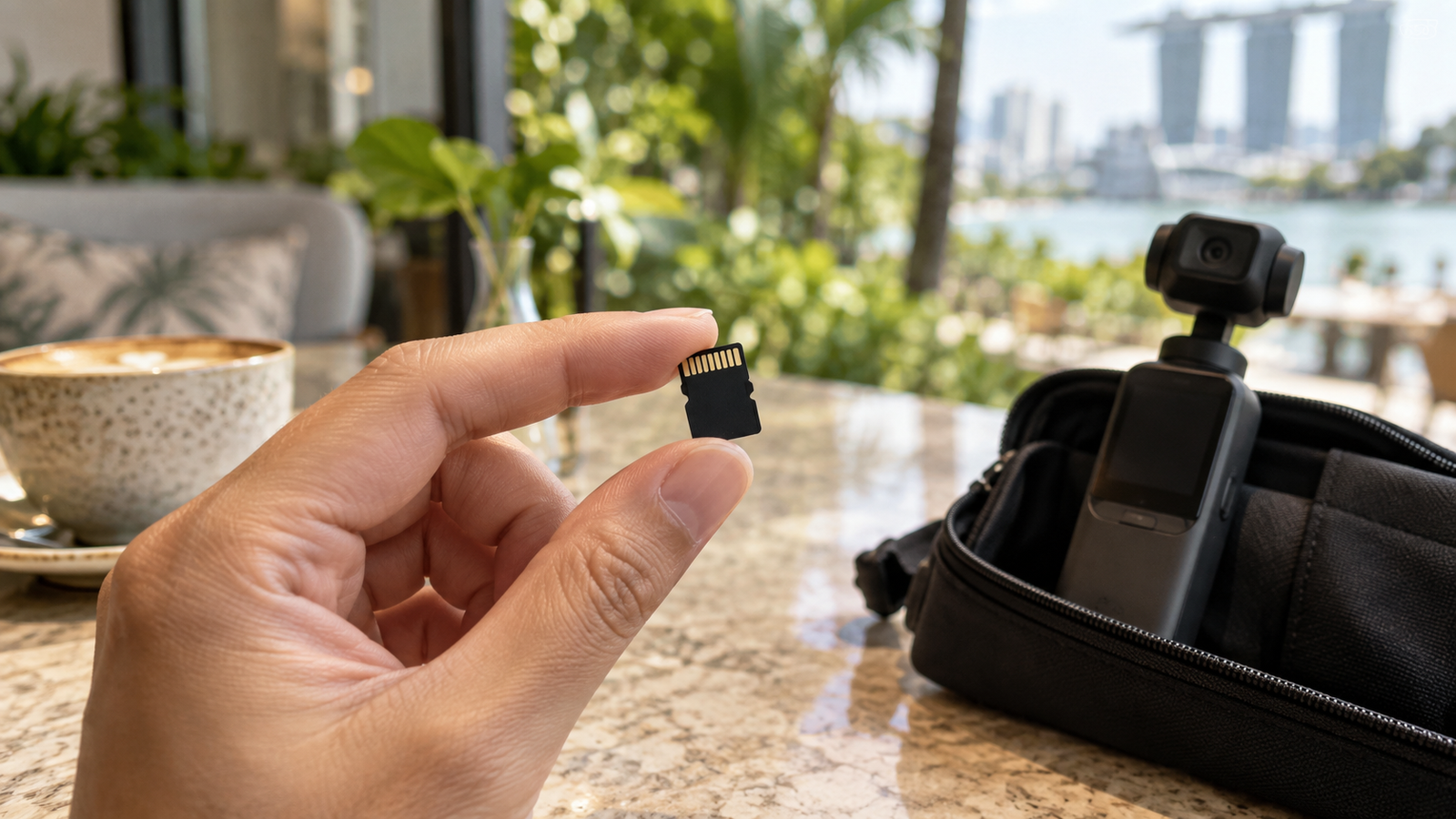
Hand holding a microSD card beside a compact gimbal camera and travel pouch on a café table

THE MEMORY CARD GUIDE · DJI OSMO POCKET 3 & 4

How to Choose a microSD Card for DJI Osmo Pocket 3 and Pocket 4

Avoid a slow-card mistake with the Pocket 3. Learn which speed labels matter, how much storage to buy and where DJI’s recommendations differ.

7-minute read · Specifications checked 8 September 2026

Hand holding a microSD card beside a compact gimbal camera and travel pouch on a café table
Small card, important choice. AI-generated editorial illustration with generic equipment; not a photograph of either DJI model.

A straightforward-seeming choice can go wrong: starting with a SanDisk Ultra microSD card for the Pocket 3, only to find it appears too slow for the camera.

Choosing a card seems simple until you realise that storage capacity and recording performance answer two different questions.

This guide’s practical grounding is with the Pocket 3. It combines that lesson with DJI’s published recommendations for both models — the Pocket 4 portion is not a hands-on test.

Why a familiar microSD card can be the wrong fit

A card may work well for storing files and still be a poor match for demanding video recording. During filming, the camera has to keep writing data continuously. Having plenty of free space does not solve a speed mismatch.

SanDisk markets Ultra microSD cards for uses including Full HD video and storage expansion. That does not make the range a universal choice for every camera or recording mode. SanDisk Ultra product information. For a broader look at how SanDisk’s own ranges compare, see our SanDisk Ultra vs Extreme vs Extreme PRO guide.

This is not a claim that every Ultra card fails in every Osmo mode. The practical lesson is narrower: check the exact card’s ratings against your camera’s guidance before buying. Brand name and capacity are only part of the decision.

Read speed vs write speed: the difference that matters

Think of filming and transferring as two stages of the same trip:

  • Write speed: how quickly the camera can save footage onto the card.
  • Read speed: how quickly another device can retrieve footage from the card, such as when copying it to your computer.
Write speed supports saving footage from camera to card; read speed helps copy files from card to computer. Match the exact card and capacity to the camera’s recommended list.
Recording and copying files rely on different parts of a card’s performance.

A prominent transfer-speed claim can be tempting, but it is not a substitute for a recording speed class. Look for the small symbols as well as the large number.

What do U3, V30 and A2 mean?

Three labels worth recognising
Label What it describes How to use it
U3 At least 30MB/s sequential writing under the UHS Speed Class standard’s conditions. Check the marking against DJI’s listed card specifications.
V30 At least 30MB/s sequential writing under the Video Speed Class standard’s conditions. Useful for identifying a card’s sustained recording class.
A2 An application-performance rating covering random access and sequential performance. It does not replace U3 or V30 when checking video suitability.

U3 and V30 belong to different rating systems; match the required symbols, rather than treating equal numbers as interchangeable. SD Association speed-class guidance; application-performance guidance.

For perspective, DJI specifies maximum video bitrates of 130Mbps for the Pocket 3 and 180Mbps for the Pocket 4. Dividing by eight gives 16.25MB/s and 22.5MB/s of video data respectively. These figures illustrate why continuous writing matters; they are not a compatibility test. Pocket 3 specifications; Pocket 4 specifications.

128GB, 256GB or 512GB: how much space do you need?

Once you have shortlisted a suitable card, think about how often you can copy your footage. Some starting points to consider:

128GB

Short outings

Consider it if you record short clips and offload frequently.

256GB

More room to film

A middle option to compare for mixed everyday and travel use.

512GB–1TB

Longer between copies

Consider more capacity if you film heavily or travel without a laptop.

These are buying suggestions, not guaranteed recording times. Resolution, frame rate, bitrate and shooting habits change how quickly space fills up. Test a short clip at your usual settings to estimate your own needs.

The Pocket 4 also has 107GB of built-in storage, so a card expands its available space. The Pocket 3 has no built-in storage. Pocket 4 storage; Pocket 3 storage.

Whichever capacity you choose, copy important clips to a separate location regularly. More space should make filming convenient, not postpone your backups indefinitely.

Already having slow-card or recording problems?

Before buying another card, work through these checks:

  1. Identify the exact card. Check its model, capacity and markings against the list for your camera—not a different Osmo model.
  2. Back up your footage. Confirm your copies open correctly before formatting anything. Formatting erases the card’s contents.
  3. Format a compatible card using the camera or DJI Mimo. Follow DJI’s instructions for your model. Formatting can address some card problems, but cannot upgrade a card’s speed rating.
  4. Record a test using your intended settings. Check playback and try a longer recording before relying on the card for an important outing.
  5. If the issue continues, try a known-good recommended card and contact DJI support. Avoid assuming every recording problem has the same cause.

DJI’s troubleshooting guidance starts with card compatibility and recommends backing up before formatting. DJI recording troubleshooting.

Frequently asked questions

Can I use SanDisk Ultra in the Osmo Pocket 3 or Pocket 4?

Ultra does not appear on either camera’s checked recommendation list. It’s worth choosing a listed card rather than relying on the brand name or advertised read speed alone — a SanDisk Ultra card has appeared too slow in at least one real Pocket 3 setup, though that is not a test of every Ultra model or recording mode.

Is any V30 microSD card suitable?

V30 describes a performance class, not model-specific DJI approval. Match the full card model and capacity to the current recommendation list.

Will a bigger card fix slow recording?

More capacity provides more storage space. It does not by itself guarantee faster sustained writing. Check the new card’s model and ratings as well as its size.

Can I reuse my Pocket 3 card in a Pocket 4?

Some listed card families and capacities overlap, as the comparison above shows. Check the exact card against the Pocket 4 list before reusing it, back up any existing footage and test your intended recording settings.

Do I need the most expensive card?

Start with a recommended model in a capacity that suits your routine. Compare prices within that shortlist; a higher price alone is not a compatibility guarantee.

This independent buying guide is not affiliated with, sponsored by or endorsed by DJI. DJI and Osmo are trademarks of their respective owners.

Posted on 1 Comment

SanDisk Ultra vs Extreme vs Extreme PRO: Which Memory Card Should You Buy?

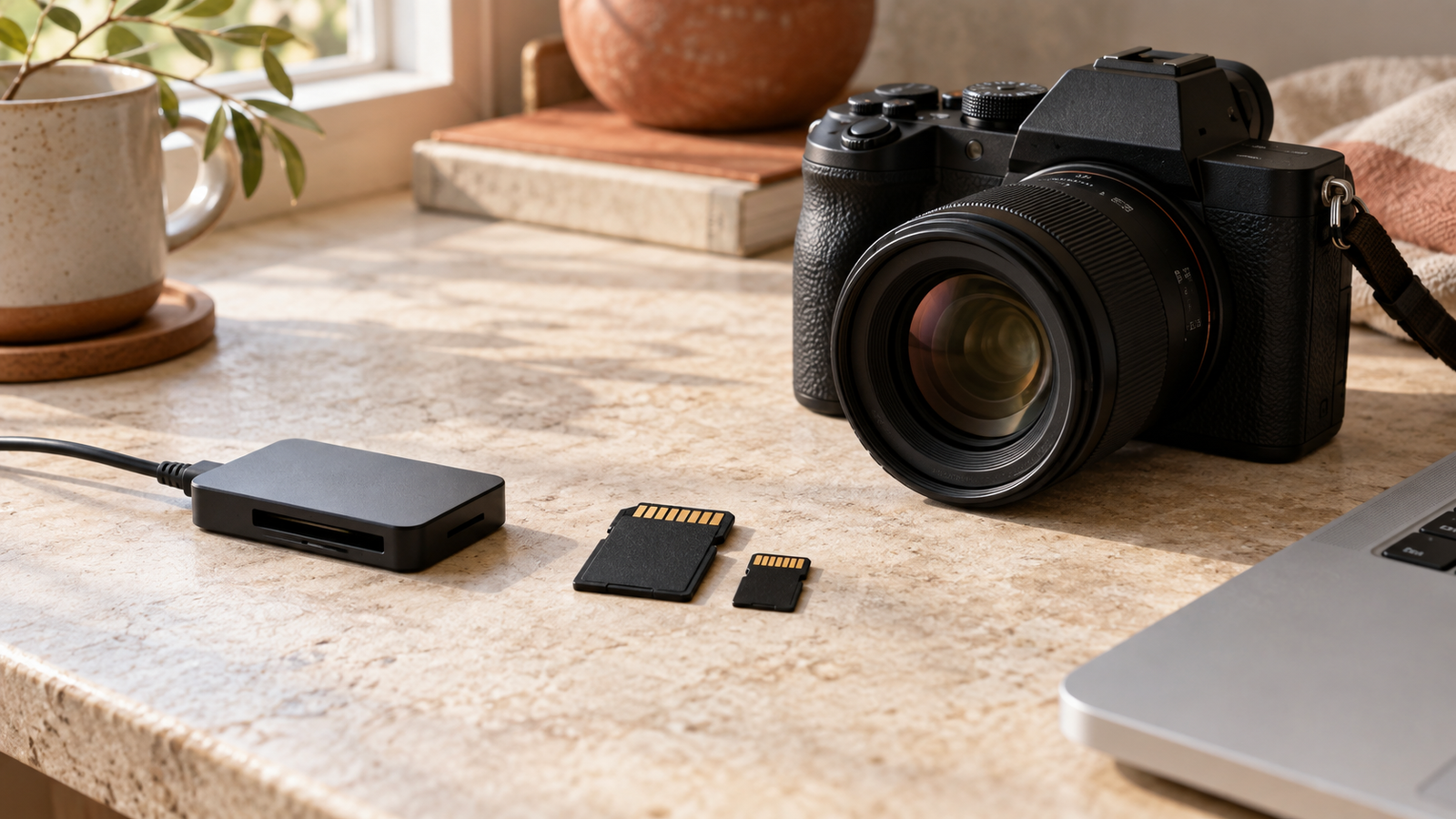
Camera, SD and microSD cards, card reader and laptop on a sunlit tabletop

MEMORY CARD BUYING GUIDE

SanDisk Ultra vs Extreme vs Extreme PRO: Which Memory Card Should You Buy?

Choose a card that fits your camera, your plans and your budget—with less guesswork.

6-minute read

Camera, SD and microSD cards, card reader and laptop on a sunlit tabletop
From taking the shot to transferring your files, the right card supports your whole workflow. AI-generated editorial illustration; equipment shown is unbranded.

You are packing for a holiday, setting up a new camera or choosing a microSD card for an action camera. Three names keep appearing: SanDisk Ultra, Extreme and Extreme PRO. They sound similar. Which one belongs in your basket?

Start with your device and what you want to record. A higher-priced card is useful when your equipment and workload can benefit from it. For occasional photos, your priorities may be quite different from someone filming a full afternoon of video.

SanDisk Ultra, Extreme and Extreme PRO compared

SanDisk positions Ultra for everyday needs and Extreme for more demanding camera and video use. Its Extreme PRO range includes options aimed at high-performance capture and transfers. Use the table to shortlist a range, then compare individual products. SanDisk’s camera and recording guidance; Extreme PRO microSD specifications.

A practical starting point for choosing your card
Range When to consider it What to check
Ultra Everyday photos, file storage and compatible Full HD recording The device’s required speed class and supported capacity
Extreme More demanding photography and supported 4K recording modes The exact card’s video speed class and your recording settings
Extreme PRO Frequent shooting and large file transfers where extra performance helps Actual read/write specifications, interface and reader compatibility

There is no single speed for an entire range. SD and microSD versions, different capacities and older or newer generations can have different specifications—even when the family name is the same. Compare the model number and capacity, not just the colour of the label.

Read speed and write speed do different jobs

Imagine you have finished filming a family day out. Your camera needed to write footage to the card while you recorded. Your laptop now needs to read that footage to copy it across.

A large “up to” transfer figure on the packaging does not, by itself, tell you whether the card can sustain your camera’s recording mode. SanDisk also notes that some advertised speeds require compatible equipment. SanDisk’s performance conditions.

What do U3 and V30 mean?

U3 and V30 each indicate a minimum sequential write speed of 30MB/s under their respective standard’s conditions. They belong to different speed-class systems, so match the symbol your device requires. A V30 requirement calls for a V30-rated card or a suitable higher Video Speed Class—not simply a fast-looking transfer number. SD Association speed-class guidance.

For 4K, check the recording mode. Resolution alone does not determine the card you need: bitrate and recording settings matter too. If your camera specifies V60 or V90 for a mode, a V30 card does not meet that requirement just because its packaging mentions 4K.

Before choosing a range, check that the card fits

01

Format

Does your device take SD or microSD?

02

Capacity

Does it support the card type and storage size?

03

Speed class

Does the card meet the requirement for your recording mode?

SD and microSD describe different physical sizes. SDHC and SDXC describe capacity standards: SDHC covers more than 2GB through 32GB, while SDXC covers more than 32GB through 2TB. An older SDHC-only device cannot use an SDXC card just because it fits the slot. SanDisk’s compatibility guide.

An adapter can let a microSD card fit an SD slot, but it does not upgrade the card’s speed or change the host’s compatibility. Check the manual before buying a larger card for an older device.

Which card makes sense for your routine?

“I mostly take holiday and family photos.”

Start by checking whether an Ultra model meets your camera’s requirements. Compare the price with a suitable Extreme card, then decide whether your shooting habits justify the difference. Occasional single photos and long bursts of high-resolution images are different workloads.

“I use an action camera or drone.”

Check the manufacturer’s recommended card list for your exact model. If a listed Extreme or Extreme PRO card meets your recording mode’s requirements, compare capacity and price next. A familiar brand name is helpful, but the device’s approved specification should guide the purchase. Once you know your device’s requirement, browse our SanDisk Extreme microSD cards.

“I shoot often and copy lots of footage.”

Compare the exact Extreme and Extreme PRO models side by side. A faster card may make sense if you regularly wait for transfers, but include your card reader and computer connection in that decision. Buying a faster card alone may not remove the bottleneck.

“I need a card for my dash cam or security camera.”

Look at endurance models designed for repeated recording. SanDisk specifically makes High Endurance cards for dash cams and home monitoring systems. Check your camera’s supported card list and capacity limit before choosing one. SanDisk High Endurance information.

How much storage should you buy?

Think about the longest gap between opportunities to copy your files. A short outing and a week of filming on holiday call for different amounts of space.

For a useful estimate, record a short clip using your usual settings and check its file size. Scale that up to the amount you expect to film, then leave room for extra takes and photos. This is more useful than a universal “hours of 4K” figure, because video file sizes vary with the settings.

Whatever capacity you choose, copy important files to a separate location regularly. A large memory card is convenient storage; it should not be your only copy of irreplaceable memories.

Frequently asked questions

Is SanDisk Extreme PRO always better than Extreme?

It depends on the specific cards and your device. Compare the same capacity and interface, including read and write specifications. Extra performance is most useful when your equipment can use it and it solves a problem you actually experience.

Can I use SanDisk Ultra for 4K video?

Do not choose by the range name alone. Check the exact card’s rating against your camera’s requirements for that 4K mode. SanDisk positions Ultra around everyday use; a suitable Extreme or Extreme PRO card may be the more appropriate shortlist for demanding recording.

Will a faster memory card improve photo quality?

A faster card does not increase the resolution or detail of a saved photo. It can affect how efficiently a compatible camera stores images, which matters more when shooting in bursts than when taking an occasional picture.

Is Extreme PRO the same as UHS-II?

No. Extreme PRO is a product family; UHS-I and UHS-II refer to interfaces. Extreme PRO SD products include different interface versions. Read the full product name and check your camera and reader support. Example: Extreme PRO UHS-I SD card.