Posted on — Leave a comment

Best Portable Storage for Polytechnic & University Students

SanDisk Ultra Dual Drive Go beside a laptop, notebook and backpack on a sunlit library desk

STUDENT ESSENTIALS · MR IT

Best Portable Storage for Polytechnic & University Students

From lecture slides to final-year projects, choose storage that fits your coursework—and keeps your files easy to find when deadlines arrive.

6-minute read · Product information checked 9 September 2026

SanDisk Ultra Dual Drive Go beside a laptop, notebook and backpack on a sunlit library desk
A small addition to your school bag can make file transfers easier. AI-assisted editorial image using the SanDisk Ultra Dual Drive Go product photo as a reference.

Your group presentation is ready, but the classroom computer has a different USB port from your laptop. Your media project is growing faster than expected. And somewhere in your folders are three versions of “final”—none clearly marked as the one to submit.

Portable storage can help with the first two problems. A simple file routine helps with the third. The best setup for a polytechnic or university student starts with the work you actually do, rather than buying the biggest drive available.

Which portable storage fits your course?

Start with the files you work with
Your main task Storage to consider Check before buying
Reports, spreadsheets and presentation slides USB flash drive Computer ports and enough capacity for your files
Moving files between a laptop and compatible phone Dual USB-A/USB-C flash drive Phone support for external USB storage
Photography, video or drone coursework SD or microSD card Exact camera model, card format and recording-speed requirements
Large video, design or other active projects External SSD where the software supports it Application requirements, sustained performance and computer connection

A business student carrying slides and a film student handling original footage may need different tools. You do not need to buy every type on this list.

Best starting point for everyday transfers: a dual-connector USB drive

For a student moving between personal devices and shared computers, the SanDisk Ultra Dual Drive Go is worth shortlisting. Its USB-A and USB-C connectors let you use the same drive with compatible devices that have different ports. SanDisk documents this cross-device design in its product information.

Our listing offers 32GB, 64GB, 128GB, 256GB and 512GB choices. For a mix of documents, slides and occasional photos, compare 64GB and 128GB first. Choose more space when your actual project folders justify it.

Check phone compatibility separately. A USB-C socket does not guarantee that every external drive works with a phone. For the Android use described in our listing, the device needs USB-C OTG support. Check the device’s requirements and supported file formats.

Shop SanDisk Ultra Dual Drive Go

Mostly using USB-A computers?

You can also compare the SanDisk Ultra Flair. It is a USB 3.0 flash-drive range to consider for ordinary file transfers; check the chosen capacity and the ports you use. SanDisk Ultra Flair product support.

Before a presentation, copy the final slides to your drive and keep a second copy in your school-approved online storage. If your software allows it, bring a PDF version too. Test the file on the presentation setup when possible, and follow your institution’s rules on removable storage.

Use a USB flash drive for transfers, a compatible SD or microSD card for camera capture, and an external SSD for large active media projects; keep a separate backup
Transferring, recording and editing are different jobs. Choose storage for the job you need it to do.

Best for camera coursework: the card your camera requires

If your course involves filming interviews, shooting photographs or using an action camera, start with the equipment manual. A fast-looking card is only useful if it meets the device’s format, supported capacity and recording-mode requirements.

Compare SanDisk Extreme SDXC cards for equipment requiring full-size SD, or SanDisk Extreme microSDXC cards for equipment requiring microSD. These are product ranges to investigate against your manual, not universal compatibility recommendations.

Do not transfer a recommendation from one camera model to another without checking. After a shoot, copy the footage and verify the files before clearing the card for your next assignment.

When should you consider an external SSD?

A flash drive is handy for carrying a completed project. Regularly editing large media files directly from external storage is a different workload. Adobe recommends fast SSD or NVMe storage for Premiere and fast external drives where internal storage is limited. Adobe’s editing-storage guidance.

If that describes your course, budget for suitable working storage instead of expecting a basic thumb drive to do everything. Check your course and software requirements before buying; we are discussing SSDs as a storage category here, rather than promising a particular model from our catalogue.

How much storage does a student need?

Open the folder containing a recent assignment and check its size. Then allow room for future work, drafts and exported copies. It is a better starting point than estimating from your course name alone.

64GB

Everyday documents

A capacity to compare for reports, PDFs and presentations.

128GB

Mixed coursework

More room for documents alongside photos and occasional video.

256GB+

Larger transfers

Consider it when project folders and media files regularly need more space.

These are starting points, not guaranteed semester-long allowances. Larger video projects can need far more space, and a higher-capacity drive is not automatically faster.

Using both Windows and Mac?

Check the drive’s file system as well as its connector. ExFAT is an option for sharing a drive between Windows and Mac; specialised equipment may have different requirements. Apple explains the choices in its file-system guide. Back up existing files before reformatting, because formatting erases the drive.

The most important student storage upgrade: a second copy

A USB drive in your bag is convenient, but if it holds the only copy of your final-year project, it is not a backup. Losing the drive would mean losing the work.

A practical routine is to keep your working files on your laptop, a separate backup on external storage, and an offsite copy through an appropriate cloud service. CISA recommends a 3-2-1 approach: three copies, two media types and one offsite copy. CISA backup guidance.

  • Name files clearly. Use module, project, date and version—for example, “Marketing_Report_2026-09-09_v03”.
  • Keep milestone copies. Save a separate version before a major revision or group edit.
  • Check your backups. Open a few copied files to confirm they work.
  • Disconnect backup storage when finished. CISA advises against leaving external backup drives connected unnecessarily. CISA device-data guidance.

For research data, internship documents or personal information, follow your institution’s storage and security requirements. Use approved services and encryption where required; do not assume an ordinary USB drive protects its contents if lost.

Frequently asked questions

Do I still need a USB drive if I use cloud storage?

You may find one useful for offline transfers and presentation copies. Whether you need it depends on your workflow and your institution’s policies. Cloud storage and portable drives can complement each other.

Is 128GB enough for university?

It can be a useful transfer capacity for mixed everyday coursework, but it is not a promise that every course’s files will fit. Check your existing folders and allow for growth.

Should I buy USB-A or USB-C?

Match the devices you actually use. A dual-connector drive is convenient when you regularly move between both; confirm external-storage support when connecting to a phone.

Can a microSD card replace a USB flash drive?

It can hold files, but your computer needs a compatible slot or reader. For camera recording, buy the required card. For routine computer-to-computer transfers, a USB drive may be simpler.

Does the highest advertised speed mean the best student drive?

No. A peak read-speed figure does not describe every transfer task or sustained writing workload. Start with compatibility, capacity and how you use your files.

Posted on — Leave a comment

How to Choose a Power Bank for Travel

Portable power bank charging a smartphone beside a passport and day bag on a sunlit hotel desk

TRAVEL ESSENTIALS · MR IT

How to Choose a Power Bank for Travel

Keep maps, tickets and holiday photos within reach. Here is how to choose portable power that fits your phone, your bag and your itinerary.

6-minute read · Airline guidance checked 9 September 2026

Portable power bank charging a smartphone beside a passport and day bag on a sunlit hotel desk
Ready for a day of exploring. AI-generated editorial illustration with generic equipment; not a photograph of a specific Verbatim model.

You have been navigating all morning, taking photos at every stop and checking train times between cafés. Then your phone reaches 10%—just as you need your hotel address.

A travel power bank should make moments like that easier. The best choice for your trip depends on more than the largest capacity printed on the box. Think about what you charge, how you carry it and when you can recharge the power bank itself.

1. Choose capacity around your day, not the length of your holiday

A seven-day holiday does not necessarily require seven days of battery capacity. If you recharge at your hotel each night, the more useful question is: how much extra power do you need between breakfast and bedtime?

Starting points for your travel routine
Your plans What to consider
One phone, sightseeing and evening hotel charging Start by comparing 10,000mAh models for size, weight and connections.
Heavy filming, several devices or shared charging Consider more capacity or a separate bank for each traveller, within airline limits.
Laptop charging Check the laptop’s USB-C power requirements. Capacity alone does not establish suitability.

Why 10,000mAh does not mean a fixed number of phone charges

The headline capacity describes the power bank’s internal battery. Delivered energy depends on voltage conversion, charging losses, the phone’s battery and whether you keep using it while it charges. Dividing the two mAh numbers is not a reliable full-charge guarantee.

For your own trip, try the power bank during a normal busy day before departure. That gives you a more useful sense of its reserve than a universal “charges your phone three times” claim.

2. Match the charging method to your phone

Wired charging is a straightforward choice when you want to keep using your phone for maps or tickets. Check the connector at both ends of the cable and the charging standards supported by the phone and power bank.

Magnetic wireless charging can be convenient for a compatible phone and case. However, magnetic attachment and wireless charging compatibility are separate checks: a magnetic ring does not add wireless charging to a phone that lacks it.

Also distinguish a maximum advertised output from the speed your own phone will receive. Actual charging power depends on the device, cable, charging protocol, battery level and conditions. A “15W wireless” specification does not promise 15W to every phone.

Do not forget to recharge the power bank

Check its input specification as well as its output. Pack a suitable wall charger, charging cable and destination plug adapter if needed. A power bank is useful away from sockets, but it still needs a way to recharge for tomorrow.

Four travel power bank checks: enough capacity, matching connections, comfortable weight and current airline rules
Four checks that matter more than capacity alone.

3. A Verbatim power bank to consider for your travel bag

Charge ‘n’ Go 10,000mAh Power Bank with Stand — Blue

This model makes sense to compare if you want charging flexibility during the day and a stand for hands-free viewing when you reach your accommodation.

Features of the blue model, Verbatim 32266 / WPBGS10
Feature Why it is useful when travelling
10,000mAh capacity A capacity to consider for phone top-ups between opportunities to recharge.
USB-C PD output up to 20W A wired charging option for compatible devices.
Magnetic wireless output up to 15W Another way to charge a supported phone; the actual rate depends on compatibility.
Foldable stand Prop up your phone to review photos or make a video call at your accommodation.
Approximately 218g A concrete weight to compare against your day-bag preferences.
Separate USB-C to USB-C cable included The cable is included, rather than built into the power bank. Check whether it fits your phone.

Specifications: Mr IT’s blue power bank listing and Verbatim’s WPBGS10 information. Maximum outputs are not a promise of simultaneous full-speed charging on every connection.

Shop the Verbatim power bank with stand

Prefer a model with a display?

You can also view the Verbatim Charge ‘n’ Go C+L Display Power Bank 10,000mAh in our catalogue. Check that the supplied cable connectors match your phone before choosing your model.

Shop the Verbatim display power bank

4. Can you bring a power bank on a plane?

Carrying a power bank and using it during a flight are different things. Check both rules before you leave home.

As checked on 9 September 2026, Singapore Airlines permits a maximum of two power banks per passenger. Units up to 100Wh do not require prior approval; those above 100Wh and up to 160Wh need approval, and larger units are not allowed. Keep them in cabin baggage, accessible under the seat or in the seat pocket—not checked baggage or overhead storage. They must not be used or recharged during the flight. Singapore Airlines power bank advisory.

Scoot also limits passengers to two, requires cabin carriage, prohibits overhead storage and does not allow power-bank use or charging throughout the flight. Its capacity conditions also distinguish units up to 100Wh from those requiring approval. Scoot power bank advisory.

These are airline-specific examples, not universal clearance for every route. Check your operating airline, connecting flights and any destination-specific requirements shortly before departure.

Look for Wh on the label

Watt-hours measure energy. When needed, the calculation is Wh = mAh × nominal battery voltage ÷ 1,000. For example, 10,000mAh at 3.7V equals 37Wh. This is an illustration, not the verified label value of either featured product; use the actual unit’s marked rating and your airline’s guidance.

Avoid treating “travel-friendly” or a small mAh number as an airline approval stamp. Keep the label readable, protect the power bank from damage and short circuits, and do not pack a damaged or recalled unit. Scoot battery packing guidance.

Your five-minute pre-trip charging check

  1. Test your phone and cable. Confirm charging works with the case you will use.
  2. Charge everything before leaving. Include the power bank, not just the phone.
  3. Pack the recharge kit. Bring the correct wall charger, cable and plug adapter.
  4. Read the battery label and airline rules. Check quantity, capacity, storage and onboard-use restrictions.
  5. Keep it accessible and protected. If your cabin bag is checked at the gate, remove the power bank first.

Frequently asked questions

Is 10,000mAh enough for travel?

It is a reasonable starting point for one phone and regular access to charging. Heavy filming, multiple devices and long periods away from sockets may call for more capacity. Test your expected usage before the trip.

Can the blue Verbatim model fast-charge every phone?

It supports up to 20W USB-C PD output and up to 15W wireless output. Your phone must support the relevant charging method; its actual charging speed may be lower.

Does a power bank replace a travel adapter?

No. It provides stored energy when you are away from a socket. You still need suitable equipment to recharge it at your destination.

Can I use it during a Singapore Airlines or Scoot flight?

Under the checked policies, neither airline permits power-bank use or recharging during the flight. Plan your phone’s battery use accordingly and check for updates before departure.

Posted on — Leave a comment

How to Choose a microSD Card for DJI Osmo Pocket 3 and Pocket 4

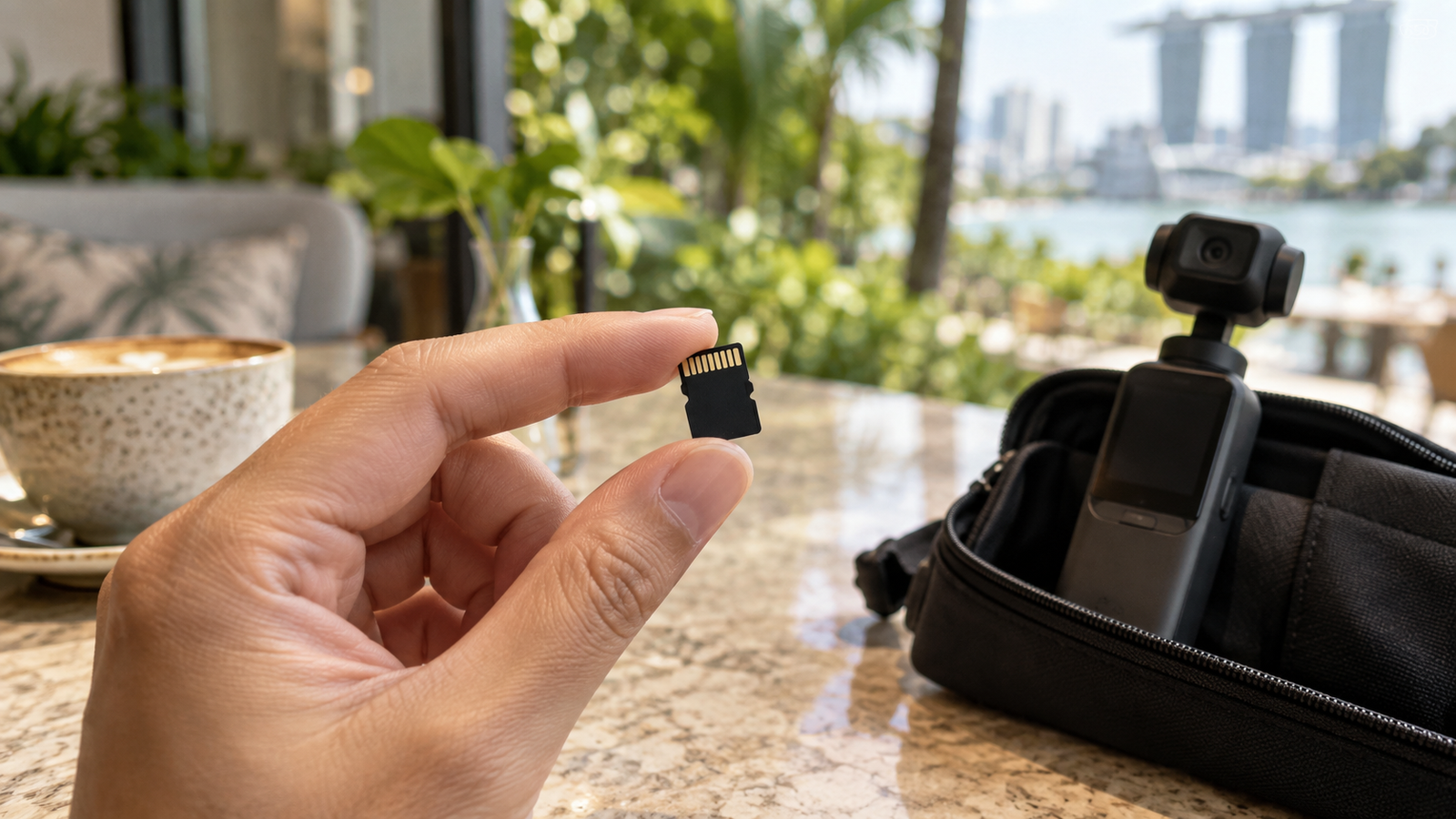
Hand holding a microSD card beside a compact gimbal camera and travel pouch on a café table

THE MEMORY CARD GUIDE · DJI OSMO POCKET 3 & 4

How to Choose a microSD Card for DJI Osmo Pocket 3 and Pocket 4

Avoid a slow-card mistake with the Pocket 3. Learn which speed labels matter, how much storage to buy and where DJI’s recommendations differ.

7-minute read · Specifications checked 8 September 2026

Hand holding a microSD card beside a compact gimbal camera and travel pouch on a café table
Small card, important choice. AI-generated editorial illustration with generic equipment; not a photograph of either DJI model.

A straightforward-seeming choice can go wrong: starting with a SanDisk Ultra microSD card for the Pocket 3, only to find it appears too slow for the camera.

Choosing a card seems simple until you realise that storage capacity and recording performance answer two different questions.

This guide’s practical grounding is with the Pocket 3. It combines that lesson with DJI’s published recommendations for both models — the Pocket 4 portion is not a hands-on test.

Why a familiar microSD card can be the wrong fit

A card may work well for storing files and still be a poor match for demanding video recording. During filming, the camera has to keep writing data continuously. Having plenty of free space does not solve a speed mismatch.

SanDisk markets Ultra microSD cards for uses including Full HD video and storage expansion. That does not make the range a universal choice for every camera or recording mode. SanDisk Ultra product information. For a broader look at how SanDisk’s own ranges compare, see our SanDisk Ultra vs Extreme vs Extreme PRO guide.

This is not a claim that every Ultra card fails in every Osmo mode. The practical lesson is narrower: check the exact card’s ratings against your camera’s guidance before buying. Brand name and capacity are only part of the decision.

Read speed vs write speed: the difference that matters

Think of filming and transferring as two stages of the same trip:

  • Write speed: how quickly the camera can save footage onto the card.
  • Read speed: how quickly another device can retrieve footage from the card, such as when copying it to your computer.
Write speed supports saving footage from camera to card; read speed helps copy files from card to computer. Match the exact card and capacity to the camera’s recommended list.
Recording and copying files rely on different parts of a card’s performance.

A prominent transfer-speed claim can be tempting, but it is not a substitute for a recording speed class. Look for the small symbols as well as the large number.

What do U3, V30 and A2 mean?

Three labels worth recognising
Label What it describes How to use it
U3 At least 30MB/s sequential writing under the UHS Speed Class standard’s conditions. Check the marking against DJI’s listed card specifications.
V30 At least 30MB/s sequential writing under the Video Speed Class standard’s conditions. Useful for identifying a card’s sustained recording class.
A2 An application-performance rating covering random access and sequential performance. It does not replace U3 or V30 when checking video suitability.

U3 and V30 belong to different rating systems; match the required symbols, rather than treating equal numbers as interchangeable. SD Association speed-class guidance; application-performance guidance.

For perspective, DJI specifies maximum video bitrates of 130Mbps for the Pocket 3 and 180Mbps for the Pocket 4. Dividing by eight gives 16.25MB/s and 22.5MB/s of video data respectively. These figures illustrate why continuous writing matters; they are not a compatibility test. Pocket 3 specifications; Pocket 4 specifications.

128GB, 256GB or 512GB: how much space do you need?

Once you have shortlisted a suitable card, think about how often you can copy your footage. Some starting points to consider:

128GB

Short outings

Consider it if you record short clips and offload frequently.

256GB

More room to film

A middle option to compare for mixed everyday and travel use.

512GB–1TB

Longer between copies

Consider more capacity if you film heavily or travel without a laptop.

These are buying suggestions, not guaranteed recording times. Resolution, frame rate, bitrate and shooting habits change how quickly space fills up. Test a short clip at your usual settings to estimate your own needs.

The Pocket 4 also has 107GB of built-in storage, so a card expands its available space. The Pocket 3 has no built-in storage. Pocket 4 storage; Pocket 3 storage.

Whichever capacity you choose, copy important clips to a separate location regularly. More space should make filming convenient, not postpone your backups indefinitely.

Already having slow-card or recording problems?

Before buying another card, work through these checks:

  1. Identify the exact card. Check its model, capacity and markings against the list for your camera—not a different Osmo model.
  2. Back up your footage. Confirm your copies open correctly before formatting anything. Formatting erases the card’s contents.
  3. Format a compatible card using the camera or DJI Mimo. Follow DJI’s instructions for your model. Formatting can address some card problems, but cannot upgrade a card’s speed rating.
  4. Record a test using your intended settings. Check playback and try a longer recording before relying on the card for an important outing.
  5. If the issue continues, try a known-good recommended card and contact DJI support. Avoid assuming every recording problem has the same cause.

DJI’s troubleshooting guidance starts with card compatibility and recommends backing up before formatting. DJI recording troubleshooting.

Frequently asked questions

Can I use SanDisk Ultra in the Osmo Pocket 3 or Pocket 4?

Ultra does not appear on either camera’s checked recommendation list. It’s worth choosing a listed card rather than relying on the brand name or advertised read speed alone — a SanDisk Ultra card has appeared too slow in at least one real Pocket 3 setup, though that is not a test of every Ultra model or recording mode.

Is any V30 microSD card suitable?

V30 describes a performance class, not model-specific DJI approval. Match the full card model and capacity to the current recommendation list.

Will a bigger card fix slow recording?

More capacity provides more storage space. It does not by itself guarantee faster sustained writing. Check the new card’s model and ratings as well as its size.

Can I reuse my Pocket 3 card in a Pocket 4?

Some listed card families and capacities overlap, as the comparison above shows. Check the exact card against the Pocket 4 list before reusing it, back up any existing footage and test your intended recording settings.

Do I need the most expensive card?

Start with a recommended model in a capacity that suits your routine. Compare prices within that shortlist; a higher price alone is not a compatibility guarantee.

This independent buying guide is not affiliated with, sponsored by or endorsed by DJI. DJI and Osmo are trademarks of their respective owners.

Posted on — 1 Comment

SanDisk Ultra vs Extreme vs Extreme PRO: Which Memory Card Should You Buy?

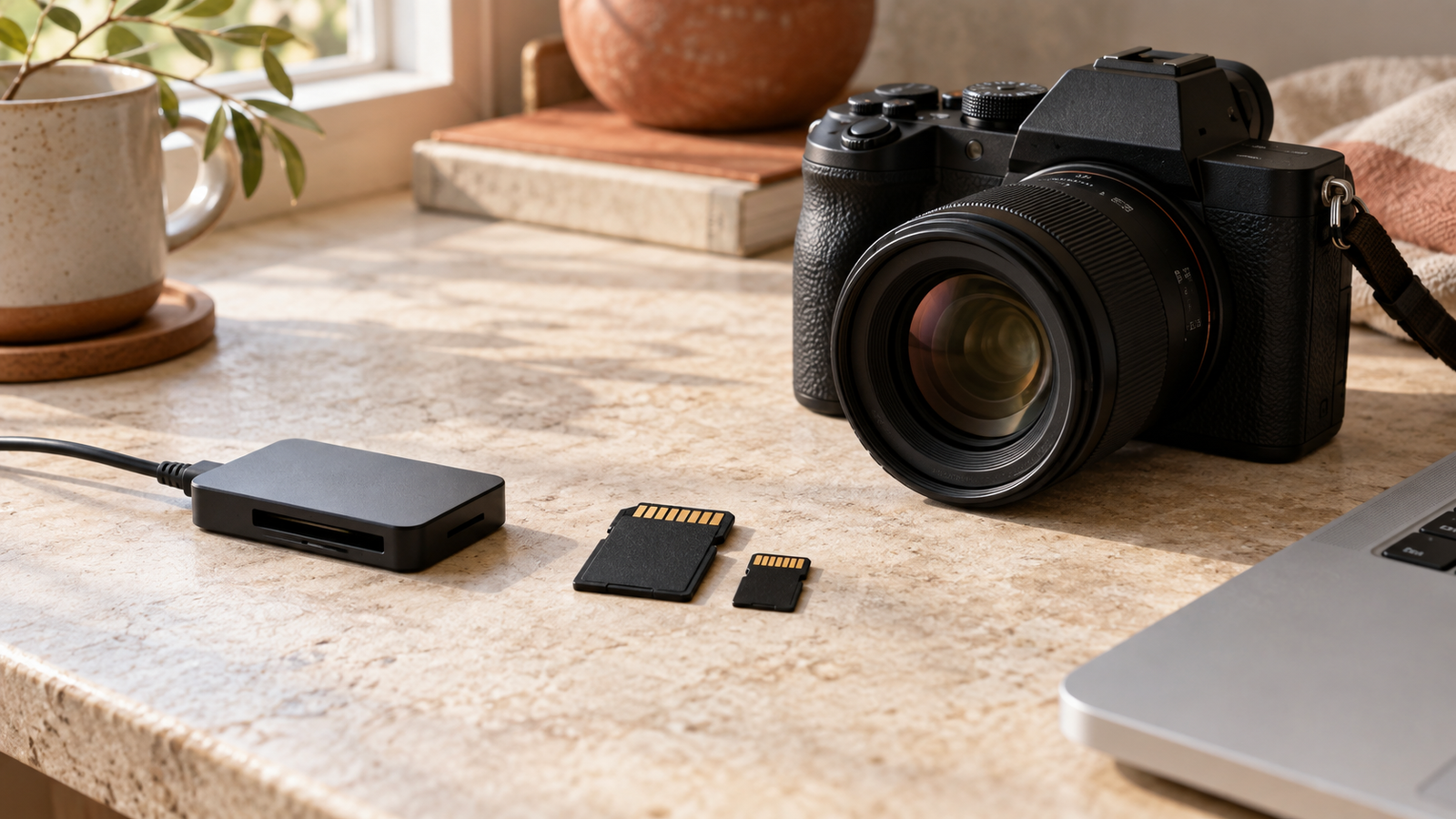
Camera, SD and microSD cards, card reader and laptop on a sunlit tabletop

MEMORY CARD BUYING GUIDE

SanDisk Ultra vs Extreme vs Extreme PRO: Which Memory Card Should You Buy?

Choose a card that fits your camera, your plans and your budget—with less guesswork.

6-minute read

Camera, SD and microSD cards, card reader and laptop on a sunlit tabletop
From taking the shot to transferring your files, the right card supports your whole workflow. AI-generated editorial illustration; equipment shown is unbranded.

You are packing for a holiday, setting up a new camera or choosing a microSD card for an action camera. Three names keep appearing: SanDisk Ultra, Extreme and Extreme PRO. They sound similar. Which one belongs in your basket?

Start with your device and what you want to record. A higher-priced card is useful when your equipment and workload can benefit from it. For occasional photos, your priorities may be quite different from someone filming a full afternoon of video.

SanDisk Ultra, Extreme and Extreme PRO compared

SanDisk positions Ultra for everyday needs and Extreme for more demanding camera and video use. Its Extreme PRO range includes options aimed at high-performance capture and transfers. Use the table to shortlist a range, then compare individual products. SanDisk’s camera and recording guidance; Extreme PRO microSD specifications.

A practical starting point for choosing your card
Range When to consider it What to check
Ultra Everyday photos, file storage and compatible Full HD recording The device’s required speed class and supported capacity
Extreme More demanding photography and supported 4K recording modes The exact card’s video speed class and your recording settings
Extreme PRO Frequent shooting and large file transfers where extra performance helps Actual read/write specifications, interface and reader compatibility

There is no single speed for an entire range. SD and microSD versions, different capacities and older or newer generations can have different specifications—even when the family name is the same. Compare the model number and capacity, not just the colour of the label.

Read speed and write speed do different jobs

Imagine you have finished filming a family day out. Your camera needed to write footage to the card while you recorded. Your laptop now needs to read that footage to copy it across.

A large “up to” transfer figure on the packaging does not, by itself, tell you whether the card can sustain your camera’s recording mode. SanDisk also notes that some advertised speeds require compatible equipment. SanDisk’s performance conditions.

What do U3 and V30 mean?

U3 and V30 each indicate a minimum sequential write speed of 30MB/s under their respective standard’s conditions. They belong to different speed-class systems, so match the symbol your device requires. A V30 requirement calls for a V30-rated card or a suitable higher Video Speed Class—not simply a fast-looking transfer number. SD Association speed-class guidance.

For 4K, check the recording mode. Resolution alone does not determine the card you need: bitrate and recording settings matter too. If your camera specifies V60 or V90 for a mode, a V30 card does not meet that requirement just because its packaging mentions 4K.

Before choosing a range, check that the card fits

01

Format

Does your device take SD or microSD?

02

Capacity

Does it support the card type and storage size?

03

Speed class

Does the card meet the requirement for your recording mode?

SD and microSD describe different physical sizes. SDHC and SDXC describe capacity standards: SDHC covers more than 2GB through 32GB, while SDXC covers more than 32GB through 2TB. An older SDHC-only device cannot use an SDXC card just because it fits the slot. SanDisk’s compatibility guide.

An adapter can let a microSD card fit an SD slot, but it does not upgrade the card’s speed or change the host’s compatibility. Check the manual before buying a larger card for an older device.

Which card makes sense for your routine?

“I mostly take holiday and family photos.”

Start by checking whether an Ultra model meets your camera’s requirements. Compare the price with a suitable Extreme card, then decide whether your shooting habits justify the difference. Occasional single photos and long bursts of high-resolution images are different workloads.

“I use an action camera or drone.”

Check the manufacturer’s recommended card list for your exact model. If a listed Extreme or Extreme PRO card meets your recording mode’s requirements, compare capacity and price next. A familiar brand name is helpful, but the device’s approved specification should guide the purchase. Once you know your device’s requirement, browse our SanDisk Extreme microSD cards.

“I shoot often and copy lots of footage.”

Compare the exact Extreme and Extreme PRO models side by side. A faster card may make sense if you regularly wait for transfers, but include your card reader and computer connection in that decision. Buying a faster card alone may not remove the bottleneck.

“I need a card for my dash cam or security camera.”

Look at endurance models designed for repeated recording. SanDisk specifically makes High Endurance cards for dash cams and home monitoring systems. Check your camera’s supported card list and capacity limit before choosing one. SanDisk High Endurance information.

How much storage should you buy?

Think about the longest gap between opportunities to copy your files. A short outing and a week of filming on holiday call for different amounts of space.

For a useful estimate, record a short clip using your usual settings and check its file size. Scale that up to the amount you expect to film, then leave room for extra takes and photos. This is more useful than a universal “hours of 4K” figure, because video file sizes vary with the settings.

Whatever capacity you choose, copy important files to a separate location regularly. A large memory card is convenient storage; it should not be your only copy of irreplaceable memories.

Frequently asked questions

Is SanDisk Extreme PRO always better than Extreme?

It depends on the specific cards and your device. Compare the same capacity and interface, including read and write specifications. Extra performance is most useful when your equipment can use it and it solves a problem you actually experience.

Can I use SanDisk Ultra for 4K video?

Do not choose by the range name alone. Check the exact card’s rating against your camera’s requirements for that 4K mode. SanDisk positions Ultra around everyday use; a suitable Extreme or Extreme PRO card may be the more appropriate shortlist for demanding recording.

Will a faster memory card improve photo quality?

A faster card does not increase the resolution or detail of a saved photo. It can affect how efficiently a compatible camera stores images, which matters more when shooting in bursts than when taking an occasional picture.

Is Extreme PRO the same as UHS-II?

No. Extreme PRO is a product family; UHS-I and UHS-II refer to interfaces. Extreme PRO SD products include different interface versions. Read the full product name and check your camera and reader support. Example: Extreme PRO UHS-I SD card.